Understanding Your Dashboard

The first thing you see when you login to MergerWare is the Dashboard.

What you see in your ‘Dashboard’ is going to differ based on your role.

If you are an Admin, here’s what you are going to see.

If you are a User, this is what you are going to see.

Understanding Your Dashboard – User

The first thing you see when you login to MergerWare is the Dashboard
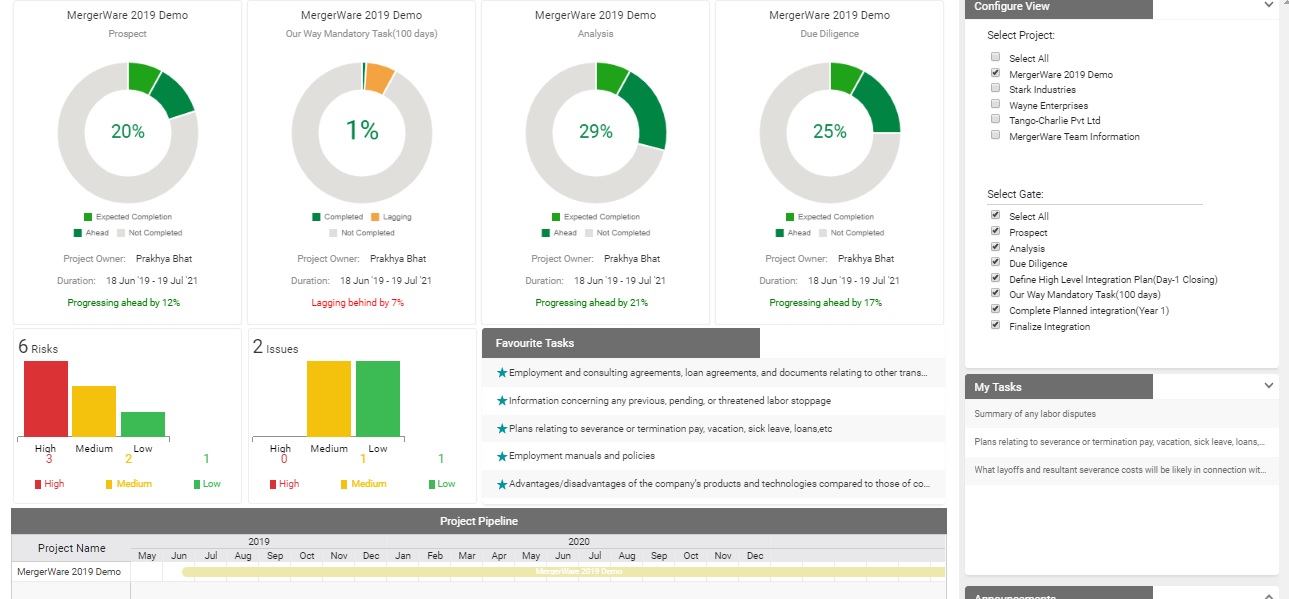
Progress Charts

  • Progress charts are shown for every deal and every deal gate you select in Configure View
  • Each chart shows whether overall gate tasks are lagging, on time or progressing ahead
  • If you click on the chart, it’s going to take you directly to the Deal
  • The screen shows four charts at a time, so if you have more than four you can scroll right to see the rest

Risks and Issues

  • Two graphs showing the risks and issues of the deals selected in Configure View
  • If you click on the risks graph, a table with detailed info about these risks is going to appear below the graph
  • The same thing will happen if you click on the issues graph
  • You can also edit the risks and issues directly by clicking on them individually in the details table

Favorite Tasks

All tasks that you have favorited will show up on this list. This depends on the deals selected in  Configure View.

Deal Pipeline

The pipeline shows the start and end dates of the deals selected in  Configure View. You can scroll right to see your deal end dates.

Configure View
  • You can select which ‘Deals’ you would like to view
  • You can also select which ‘Gates’ of Deals you would like to view
  • You can specify the status of the ‘Deals’ and ‘Gates’ you would like to view

My Tasks

You will see the tasks assigned to you in each of the deals selected in  Configure View.

Announcements

Announcements are created by admins for each deal. You can click on an announcement to view details.

Understanding Your Dashboard – Admin

The first thing you see when you login to MergerWare is the Dashboard

Switching between Admin and IM dashboards

  • If you are an Admin on the platform, you will have the option to switch between Admin and Integration Manager Dashboard views
  • You will find a dropdownlist on the top right corner of the screen
  • Selecting Admin will show you the Admin Dashboard view and selecting IM will show you the Integration Manager/User Dashboard view

Platform Configuration

Risks and Issues

  • Two graphs showing the risks and issues of the deals selected in Configure View
  • If you click on the risks graph, a table with detailed info about these risks is going to appear below the graph
  • The same thing will happen if you click on the issues graph
  • You can also edit the risks and issues directly by clicking on them individually in the details table

Favorite Tasks

All tasks that you’ve favorited will show up on this list. This depends on the deals selected in  Configure View.

Deal Pipeline

The pipeline shows the start and end dates of the deals selected in  Configure View. You can scroll right to see deal end dates.

Configure View
  • You can select which ‘Deals’ you would like to view
  • You can also select which ‘Gates’ of Deals you would like to view
  • You can specify the status of the ‘Deals’ and ‘Gates’ you would like to view

My Tasks

You will see the tasks assigned to you in each of the deals selected in  Configure View.

Announcements

You can add announcements for each deal, specifying the Subject and Description. They can be seen by everyone assigned to the deal.

MergerWare’s Core Functionalities

With MergerWare, you get to enjoy many functionalities all in one platform.