User Management

You can use User Management to start inviting your team to the MergerWare platform.

You can get to User Management from:

  • Dashboard
  • Main Menu>Configuration

You can use User Management to:

Add New Users

  • Under ‘Configuration’, Go to ‘User Management’, the ‘Add New User’ form will appear on the right
  • You have the option to either add users one by one or in bulk
  • If you want to add multiple users in bulk, you can click on ‘Download template file’ under the Upload button
  • Enter user ‘Emails’, ‘Names’, ‘Countries’, and ‘Roles’ in the sheet and then upload it and the users will be added to the platform
  • If you want to add users individually, Enter user details including official ’email ID’
  • Global Role: It is the overall role of the user in the platform. This determines what permissions the user has on the platform, and thus on deals. You can change the users role for each deal. You can put the user on ‘blocked’ status until you determine what permissions you’d like the new user to have
  • To check/edit permissions of each role, go to ‘Roles and Permissions’ under ‘Configuration’
  • If you add any users as Blocked, you will need to check the ‘Show Blocked Users’ checkbox in order to see them in the user list

Edit Existing Users

  • If you want to edit existing user details, you can click on the user you would like to edit. Their details will appear in the right pane
  • After completing the edits, click on ‘save’

Search for Users

  • You can search for users by ‘Name’, ‘Email’, ‘Country’ or ‘Role’

Risk and Issue Tracking

You can create Risks and Issues and track your team’s progress in addressing them.

Risks and Issues can be created on Deal, Stream Group, Stream, Task Group, and Task Levels.

Deal-level Risks and Issues:

  • You can create risks and issues on a deal-level
  • Click on the ‘Risk’ icon in the deal toolbar
  • On the right pane, enter risk/issue details:
    • ‘Summary’ and ‘Description’ of the risk/issue
    • Assign risk/issue to any of the users assigned to the deal
    • Enter target date of addressing this risk/issue
    • Type: select whether this is a risk or issue
    • You can also select the criticality of the risk/issue and status, whether it’s ‘done’ or ‘in progress’. This can be changed at anytime
    • Select whether this is an inter-deal risk/issue or not
    • Enter your ‘mitigation plan’ (if any)
  • Once you click on submit, the new risk/issue is going to appear in the list on the left
  • If you click on any of the risks/issues in the list on the left, its details will appear on the right and you can edit them

Stream group, Stream, Task Group and Task-level Risks and Issues:

  • You can create risks and issues for any of the lower levels in the deal i.e stream group, task group and task
  • All you have to do is click on the Add Risks/Issues icon shaped like a triangle beside the task or task group you would like to create it for
  • The ‘Add Risks/Issues’ icon is in the actions column
  • Once a Risk/Issue is added the icon gets highlighted

You can view and edit all the Risks and Issues created for a deal on your Dashboard.

You can also Create and Export Executive Reports for Risks and Issues.

Backup and Restore

You can use the Backup and Restore feature to create backups of your deals, data and restore previous backups.

You can get to Backup and Restore from:

  • Dashboard
  • Main Menu>Configuration>Backup and Restore

Create Backup:

  • A backup of your deals and data is automatically performed on a daily basis
  • If you would like to create your own backup, enter ‘Backup Name’ and ‘Description’ and click on Create
  • You will get a notification that your backup has been created

Restoration:

  • If you would like to restore a previous backup version, you can do that by clicking on the Restore button
  • This request is sent to MergerWare admin who will be doing the restoration for you
  • Your data will be restored to the latest backup version
  • If you have any specific requests or comments, please enter them in the ‘Any Comments’ section before clicking on Restore

Assigning Responsibilities

After you are done creating your deal and selecting/uploading the M&A playbook, you can start assigning responsibilities to your team members.

Be Sure to Read These Articles First:

Assigning Users to Deal:

  • After adding your team members to the MergerWare platform, you can start assigning them to deals
  • Click on the ‘Assignment’ menu in the deal toolbar and select ‘Assign User’
  • You can select multiple users at a time to assign them to the deal. You can also select their role in thedeal or simply select ‘Blocked’ if you still haven’t decided which role/permissions you would like to give them
  • Note that a users role in a deal is different from their global role in the platform

Assigning Users to Working Groups:

  • Under the ‘Assignment’ menu, select ‘Assign to Working Group’
  • On the right, you will find a list of the users who have been assigned to this deal. If you can’t see a specific user, go back ‘Assign User’ and make sure you added this user to the deal
  • You can choose from the list of Working Groups at the top. These are the Working Groups that you’ve created in Working Group Management.
  • You can select multiple users to be assigned at the same time to a working group
  • Note that the users you assign to the deal are assigned to all the gates of this deal, but working group assignment is per gate. Meaning that every time you create a new gate, you have to reassign users to the working groups of this gate

Assigning Users and Working Groups to Levels Under Deal:

  • You can assign users or working groups to stream groups, streams, task groups and tasks
  • You can do that using ‘Assign Users/Working Group’ in the right pane
  • Note that when you make an assignment on a higher level, it is automatically cascaded to all lower levels. So if you want to give users access to specific tasks, you should make the assignment on the task-level, not the task group level
  • The permissions that users will get are based on their deal role and the permissions you give to each role in Roles and Permissions
  • If you want a specific user to be responsible for a stream group, stream, task group or task, you can do that in the ‘Assign User’ and ‘Working Group’ window by clicking on Responsible
  • This will make the set of tasks that this user is responsible for appear in their Dashboard under ‘My Tasks’

Roles and Permissions

You can use Roles and Permissions to edit access controls at a very granular level, as well as create new roles.

You can get to Roles and Permissions from:

  • Dashboard
  • Main Menu>Configuration>Roles and Permissions

Edit Access Controls:

  • You can set up permissions for each role for the following levels:
    • Global:
      • This is for setting permissions for the overall platform, and not for a specific deal
      • You can use this to give users access to do things like creating new deals, viewing/uploading/removing/downloading files in platform-level VDR, changing their own roles, localization, backup and restore, editing role permissions, etc.
      • It is highly advisable not to give users other than ‘Admins’ and ‘Integration Managers’ any edit permissions on this level. You can just give them view permissions on certain things instead
    • Deal:
      • This is for setting deal-level permissions
      • You can give users the permission to edit deals, view/upload/remove/download files in deal-level VDR, user and working group assignments, creating/editing/deleting stream groups, streams, task groups, and tasks, etc..
    • Reports:
      • This is for setting permissions for ‘Finance’, ‘Synergies’, and ‘Executive Reports’
      • You can give users permission to view and execute reports, edit baseline, and actual numbers, etc..

Add Role:

  • At the top of this page, you will find an Add Role button
  • You can add a new role by entering ‘role name’ and ‘description’ and clicking on Add
  • The new role will appear at the very end of the roles and permissions table
  • You can then start giving permissions to the new role

Reset:

  • If you want to delete any new roles you created, you can click on the ‘Reset’ button at the top of the page
  • Reset also restores the original permissions assigned to each role and removes any edits made to permissions

MergerWare M&A Template

When creating a new deal, you can choose to use our in-house M&A template or your own M&A playbook (in this case, select ‘Empty’ when creating your deal).

If you decide to go with the MergerWare M&A Template, here are a few things you need to know:

  • While our M&A template isn’t industry-specific, it has an exhaustive list of tasks for every function
  • You can customize the playbook by adding/removing/editing whatever you see necessary
  • You can add new items by clicking on the plus sign beside the higher level of the item you would like to add
    • For example: if you would like to add a new task group, click on the plus sign beside the stream
    • A window will appear for you to enter ‘title’, ‘description’, ‘start’ and ‘end dates’
    • Note that the start and end dates can’t go beyond the top level
  • You can delete items using the trashcan icon beside each item. Deleting higher level items will delete everything in the lower levels
  • Only users with add/edit/delete permissions, usually admins and integration managers, can perform these actions
  • For each gate/M&A stage, you will find a list of tasks for both global and business functions
  • Whenever you start a gate and it appears in your Deal page, you will be able to see the tasks related to this gate
  • The playbook contains tasks for functions like ‘Employee Management’, ‘Sales’, ‘Legal’, ‘Finance’, ‘Tax’ and many more

VDR – Document Management System

MergerWare has Multi-level Document Management:

Platform-level VDR:

  • You can get to the Platform-level VDR by going to the main menu on the left and clicking on VDR
  • You can control access to this and other VDR levels through Roles and Permissions
  • Normally, everyone with access to the platform can see this VDR, so you can use it to keep on-boarding material or general documents and templates that you would like other members of your team to use
  • You can use this VDR to create folders, upload multiple documents and delete files and folders
  • You can integrate your current documents to the system

Deal-level VDR:

  • The deal-level VDR is found on the deal toolbar
  • You can use this VDR to create folders, upload multiple documents and delete files and folders

Stream group/Stream/Task group/Task-level VDR:

  • You can find the VDR icon in the shape of a cloud beside each item
  • You can use this VDR to create folders, upload multiple documents and delete files and folders
  • When you upload a file to this VDR it will be highlighted and the color will turn blue

If you would like to Search for a specific file or folder in the VDR, you can open the VDR, whether platform or deal or lower level, and enter all or part of the file/folder name in the ‘Search box’ at the top. The folders/files corresponding to your search term will be highlighted.

The majority of the most commonly used file types are supported by the VDR. However, executable files are not supported. You can contact our Support team if you are having any trouble uploading your files.

Executive Reporting

You can get to Executive Reporting from:

  • Deal Management page, toolbar, Report menu
  • Main Menu>Analytics and Reporting>Executive

Running Executive Reports:

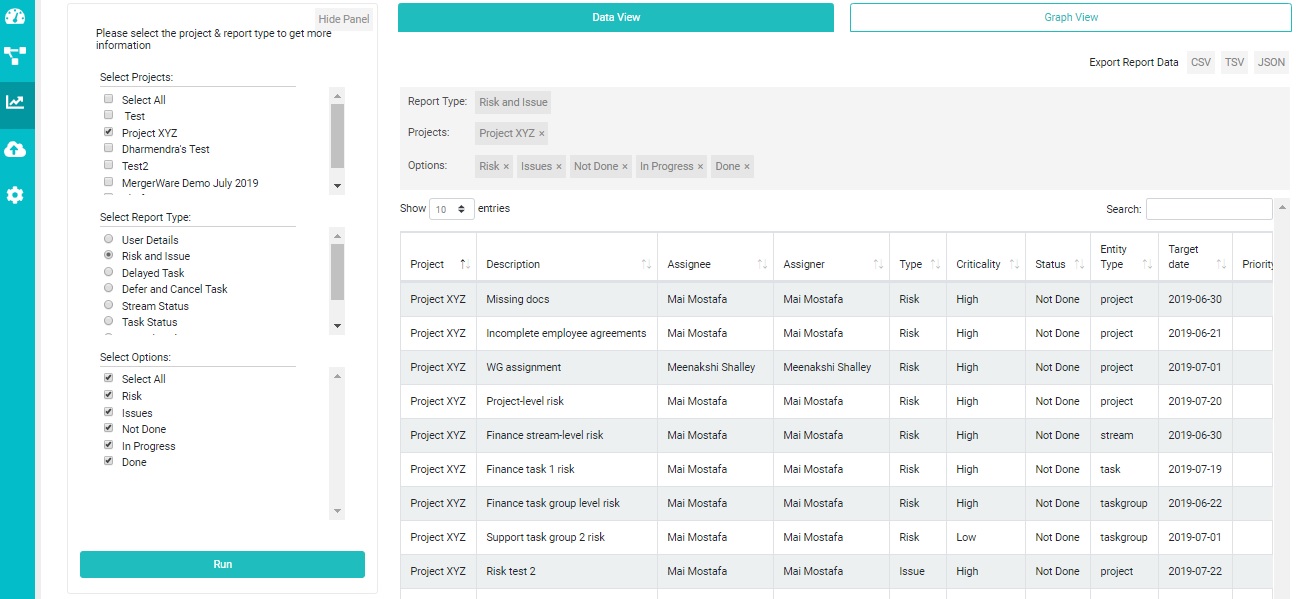
  • You can run executive reports for ‘risks and issues’, ‘user details’, ‘task status’ and ‘stream status’ and many more
  • Just select the deals that you would like to run the reports for
  • Select the report type
  • Each report type will give you options to choose from. For example, you can select which roles you would like to see in the ‘User Details’ report, for ‘Risks and Issues’ report you can choose per status or type or both
  • If nothing shows up in the report pane on the right then there isn’t enough data for the report to run
  • Once you have made all your selections, both data and graph reports will be populated
  • You can switch between data and graph by clicking the links at the top
  • You can also export data reports in csv, tsv and json formats, and you can download the graph report in svg format

Financial and Synergies Reporting

You can create Financial and Synergies Reports in 3 easy steps:

Enter Actual and Baseline Data:
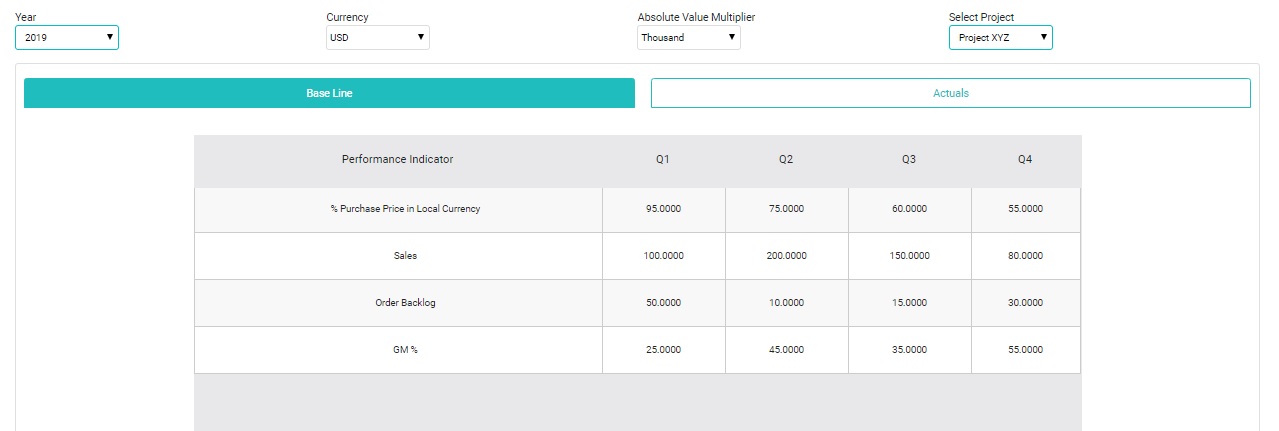
  • After creating and assigning a template to your deal in the first step, go to the main menu on the left and under ‘Metrics’, you will find ‘Financial and Synergies’, they are both set up the same way
  • When you click on ‘Financial/Synergies’, the ‘Financial/Synergy Performance’ page will open
  • In this page, you can enter your baseline and actual data
  • Select your deal first, from the deal dropdown list, then select the ‘year’, ‘currency’ and ‘absolute value multiplier’ and enter your data
  • You can extract your data by clicking on the Export button at the bottom of the page, in json, tsv and csv formats
  • Note that if you would like to change your data, you can do that anytime
  • You can navigate across different deals from the dropdown list on the top right
Run Financial and Synergy Reports:
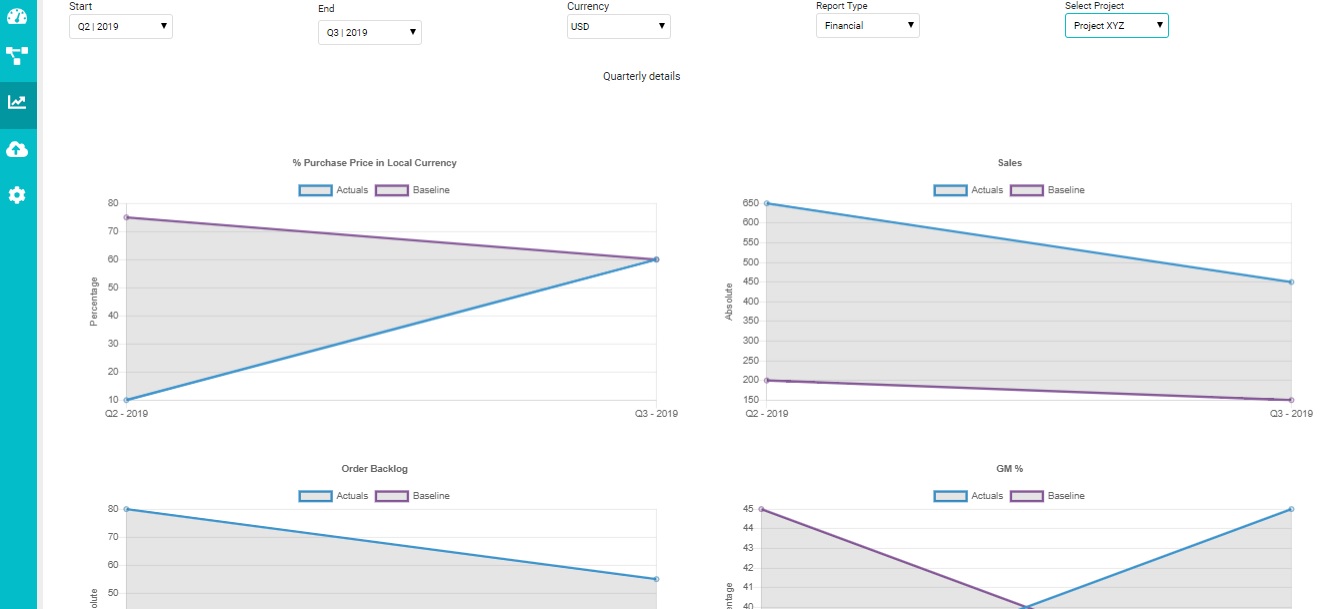
  • Now that you have entered your baseline and actual data, you can see how well your deal has performed post-acquisition
  • You can run the reports directly from your Deal page. There is a ‘Report’ menu on the deal toolbar, you can use it to go to ‘Financial and Synergies Reports’ and ‘Executive Reports
  • You can also get to reports by going to the main menu on the left, clicking on ‘Post-Acquisition Performance Reports’ under ‘Analytics and Reporting’
  • In the post-acquisition performance page, you can select the ‘start’ and ‘end quarters’, the ‘report type’ and the ‘deal’
  • A graph is going to be populated for each of the fields in your ‘Financial/Synergies’ reports, which can be exported as JPEG
  • You can navigate across different deals from the dropdown list on the top right

Template Management

You can use Template Management to create base templates for Post-Acquisition Performance reports and assign them to your deals

You can get to Template Management from:

  • Dashboard
  • Main Menu>Configuration>Template Management

Creating base templates and assigning them to deals:

  • You can use this module to create templates for populating Financial and Synergies Reports (post-acquisition performance reports)
  • In the ‘Customize Template’ section, you can either select the default template or any of the templates you have previously stored in Mergerware
  • The default template has a set of pre-stored fields that will be available to you in the next section of the page
  • You can select which fields you would like to include in your Financial reports by selecting them from ‘Available Fields’ under the ‘Financial Data’ section. You can select multiple fields at the same time and click on the arrow to move them to ‘The Selected Fields’
  • If you change your mind about the fields you selected, click on the Reset button which will deselect the fields, allowing you to start over
  • If you want to remove any of the fields from ‘The Selected Fields’ box, you can click on the red remove button that appears beside each field
  • You can also add your own fields by entering the ‘name’ and ‘value’ of the new field and clicking on Done. This field will be added directly to ‘The Selected Fields’
  • Once you’re done selecting your ‘Financial Data’ fields, you can do the same for ‘Synergies Data’ fields
  • To create the template with the fields you selected, click on Save As, enter the template name in the window that appears and then click on Done
  • Now it’s time to assign your newly created template to your deal by clicking on ‘Assign Template to Deal’ tab
  • Select your template from the dropdown list and you will see a preview of the Finance and Synergy data fields you previously selected
  • Select the deal(s) to which you would like to assign the template and click on Submit