
You can use Deal Management to:

You can get to Deal Management from:
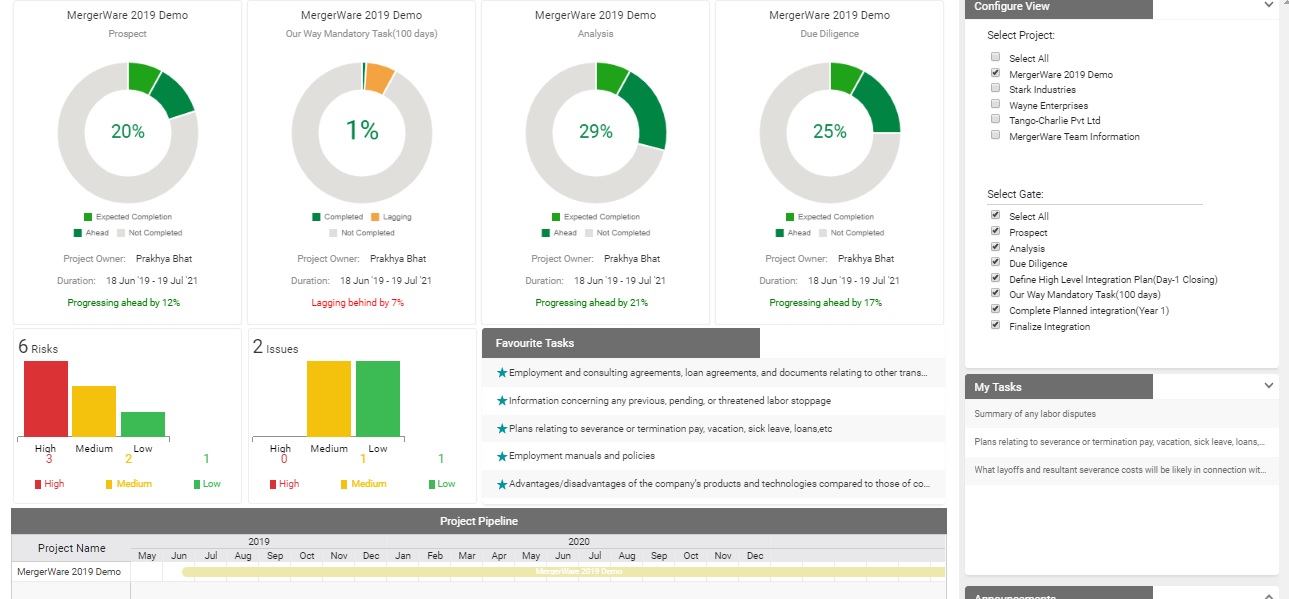
- Dashboard
- Main Menu>Configuration>Create Deal
Creating a new Deal
- Enter ‘deal name’ and ‘description’
- Choose ‘deal country’ from dropdown list
- Deal Type:
- If you have your own M&A playbook that you would like to use for the deal, select ‘Empty’ and check this step once you are done creating your deal
- If you have a previously saved playbook you can use it from the dropdown list of templates
- If you don’t have your own playbook and would like to use MergerWare’s comprehensive M&A playbook, select ‘MergerWare M&A Template’
- Choose deal ‘start’ and ‘end dates’, they can be changed later if needed
- There is some optional additional info you can enter for each deal like ‘code name’, ‘legal name’, ‘business division’, and ‘strategic unit’
- When creating a deal, you will need to enter ‘Gate’, phase/stage, information:
- Select whichever gate you’d like to start your deal with and enter ‘start and end dates’
- Generally speaking, start and end dates can’t go beyond the deal dates
- Gate names are customizable, go to Configuration>Localization>Rename Stages to change them
- You can set the ‘Advanced Options’ when first creating the deal, or later whenever you would like to use this functionality.
- This option sends daily updates of new files added to the VDR to all users assigned to the deal, along with the emails you enter in the ‘VDR email IDs’ field
- You can customize the ’email header’ and ‘footer’
- The email subject line will contain the deal name
Manage Your Deal
- Assign users and working groups to deal
- Upload files to the VDR
- You can navigate between your deals and their gates using the deal and available gates dropdown lists at the top of the Deal Management page
- Manage tasks:
- You can favorite or delete a task, insert a new risk/issue and create folders and upload files using the icons in the ‘Actions’ column beside each task
- Favoriting a task will add it to your ‘Favorite tasks’ window in your Dashboard
- If you would like to add a new task, you can do so by clicking on the ‘+’ sign beside the task group
- To change the start and end dates of a task, you can do that by dragging the date bars in the Gantt chart. Make sure not to go beyond the task group dates
- You can create dependencies between tasks by clicking the end of a task and dragging the arrow to the start of another task. Dependencies can only be created from finish to start
- You can use the pane on the right to do the following:
- Update task progress
- Transfer tasks between different gates
- Defer or cancel a task using the Status dropdown list. Deferred/cancelled tasks are changed to a different color
- Update task priority
- Insert comments viewable by other team members
- Schedule meetings with other team members
Uploading your own M&A Playbook
- If you’d like to use your own M&A playbook, go to the deal page
- In the deal toolbar, you’ll find the ‘Export/Import’ menu, click on ‘Import Playbook’
- You’ll find the ‘Deal Entity Import Template’, download it
- This is the template where you can put your data, streams, stream groups, task groups, and tasks and start and end dates for everything
- Important: Make sure that the start and end dates of the tasks don’t go before or after the gate start and end dates or you will get error messages and your items won’t be uploaded
- Save the file in csv format
- When you are done, go to ‘Import Playbook’ under ‘Export/Import’ menu and click on upload and select your file
- If you have too many items, it might take some time for the platform to upload everything, but you are going to see the progress
- Once MergerWare is done uploading your playbook, you will get a notification that upload is complete
- If there are any errors during the upload and some items fail to upload, you will receive an email from MergerWare with a file containing all items that failed to upload and the failure reasons
- Check the errors, fix your playbook and re-upload it to Mergerware platform
- Only the items that initially fail to upload will be uploaded, there won’t be any duplications with the items that are uploaded successfully the first time
- You can add new items by clicking on the plus sign beside the higher level of the item you would like to add.
- For example: if you would like to add a new task group, click on the plus sign beside the stream
- A window will appear for you to enter ‘title’, ‘description’, ‘start’ and ‘end dates’
- You can delete items using the trashcan icon beside each item. Deleting higher level items will delete everything in the lower levels
- Only users with add/edit/delete permissions, usually admins and integration managers, can perform these actions
Save and Reuse your Template
- If you would like to save your M&A playbook and reuse it for future deals, you can click on ‘Export/Import’ menu in the deal toolbar
- Click on ‘Export as Deal Template’ and enter the template name then save
- Next time you create a new deal, you’re going to find your saved template as one of the options in the ‘Deal Type’ dropdown list

 MergerWare Help Docs